How it works
Create a job advert in steps — role, place & pay, description, criteria, CV & audience — then preview, check access, save a draft or publish.
-
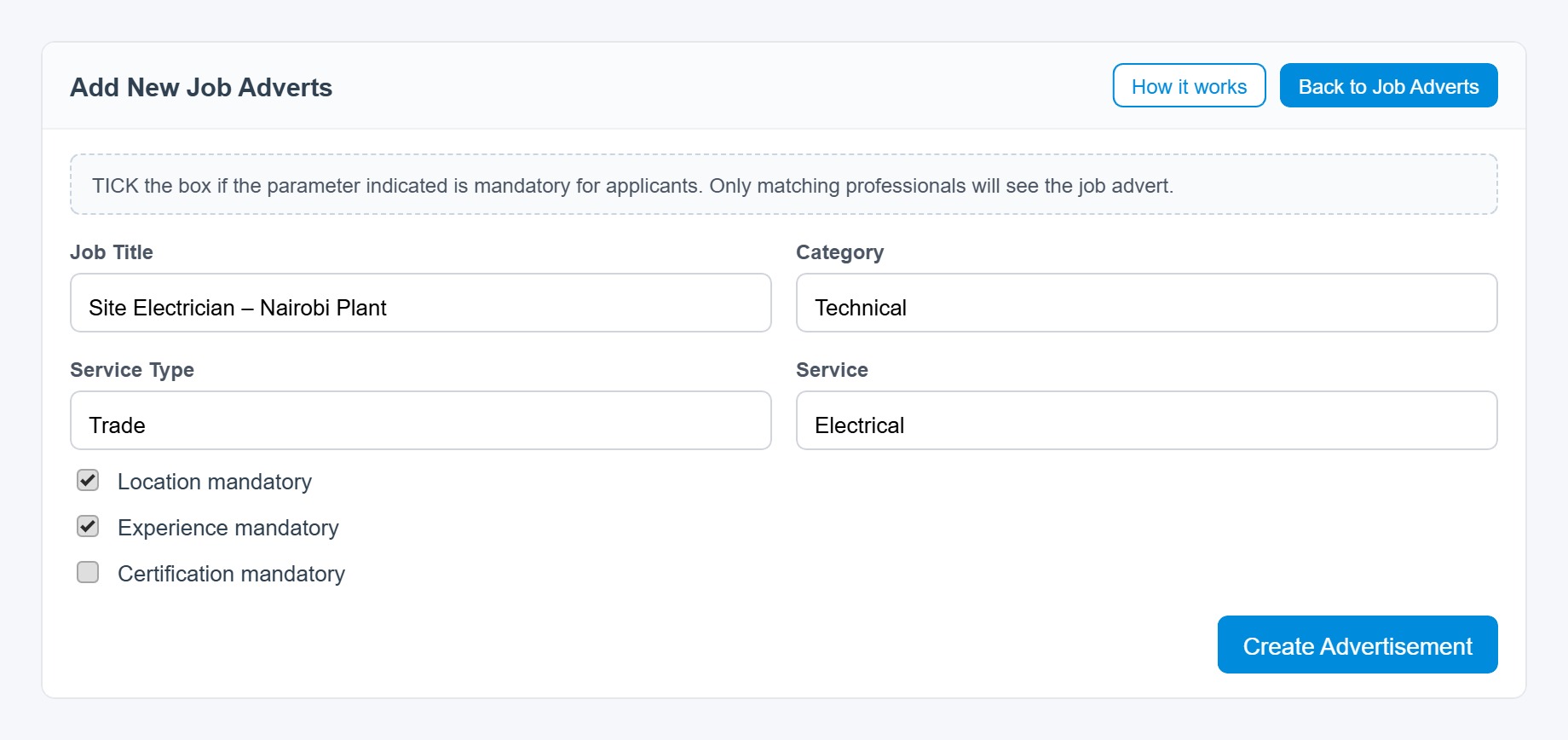 Request
- Follow the wizard: 1 Role → 2 Place & Pay → 3 Description → 4 Criteria → 5 CV & Audience.
- Start with role, work place, pay, and deadlines; add applicant criteria and audience later.
- Tick Must where a field is mandatory so only matching professionals see the advert.
- On Preview, check what applicants will see; on Access, review who can view the advert.
- Use Save draft to keep unfinished work, or publish when ready.
-
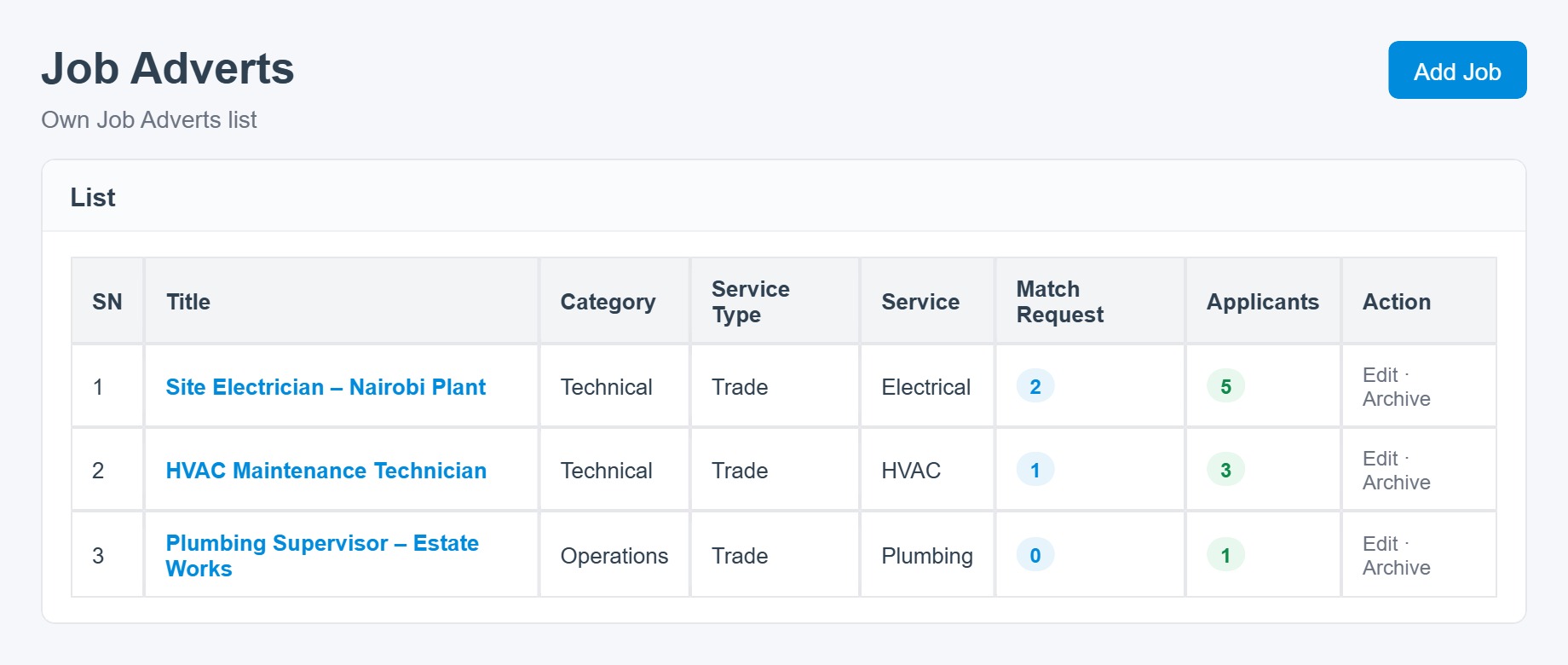 Browse
- Open Job Adverts to see posted and draft roles for the account you are acting as.
- Review Title, Category, Service, Match Request, and Applicants.
- Click Add Job to start the wizard again.
-
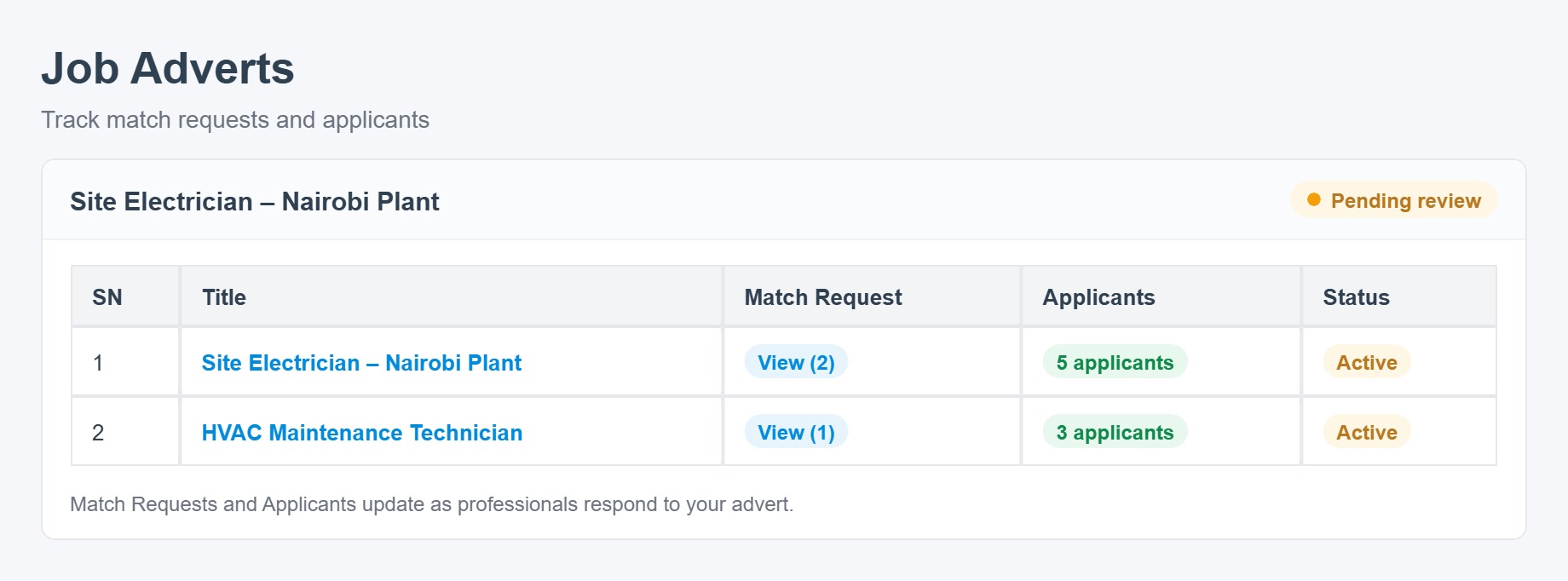 Approval
- Published adverts appear on your Job Adverts list; drafts stay available to finish later.
- Watch Match Requests as professionals express interest.
- Open Applicants for that advert (scoped to the organisation when you posted while switched).
-
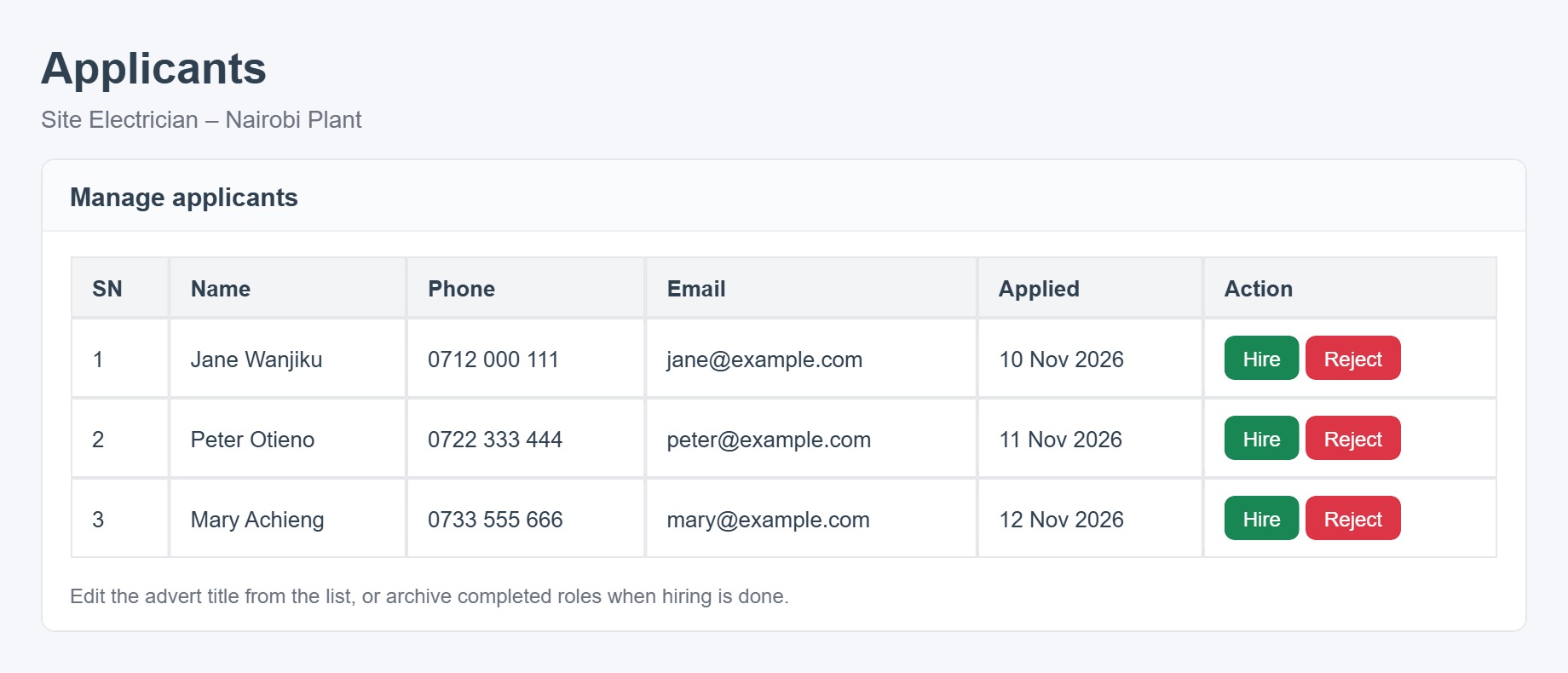 Manage
- Hire or reject applicants from the applicants screen.
- Open an advert title to edit through the same wizard steps.
- Archive completed roles or change status from the list actions.
Advertising permission may be required to create or publish. While switched to an organisation, the advert title shows that org name, and applicants belong to that org context.